an adventure wiping a MacBook
Picture the scene, I’ve gotten the laptop back from the end user and need to reinstall macOS. The particular reason for this is that I need to get ADE 1 to pick the device up so I can use LAPS 2 on the device.
So, like the other two laptops, I tell Intune to wipe the device (including obliteration, which is the term used to describe a “secure erase” type of wipe 3). This goes fine, the device turns off, on again, and into recovery, all is normal.
Then I try to reinstall macOS.
the installer can’t install
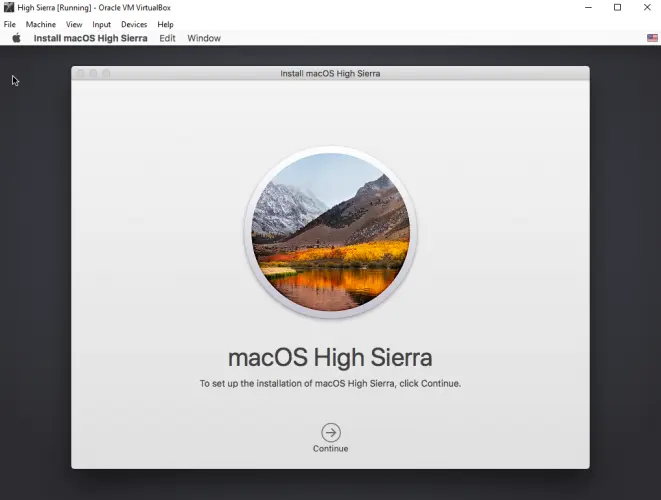
Not my image as I did not capture it, but this is essentially what I saw when progressing through the installer.
I’d never had this issue before, so I gave it a quick search.
Most posts I found suggest that the disk is improperly formatted, and sure enough when looking in Disk Utility, there was 940GB unallocated in there. I hadn’t checked this on previous installs so I can’t be sure if the obliteration is what caused it to not like the disk, or if it was something else.
No problem, I’ll just reformat the disk then.
the disk formatter can’t format
Nope, no I wont, because the recovery partition is stored on the main disk, meaning you can’t actually do much to this disk as you are booted from it.
On Intel laptops you are able to recover over the internet, sidestepping this issue, but on Apple Silicon you can’t.
Alright then, guess I’ll have to reinstall the old fashioned way then.
external reinstall device hell
There’s 2 main ways to reinstall macOS on a device that can’t do it via recovery:
- DFU mode
- USB boot
Both of these require another MacBook (or Mac Mini, etc), or some annoying hackery to obtain and write the ISO files to the USB stick.
Fortunately this was at work so we did have another MacBook available. Onward to reinstall!
I first tried to reinstall via USB, as this felt like the simpler solution.
usb installer hell
This is comically difficult to do, given the whole ‘vertical integration’ idea Apple likes to design around.
Depending on the version of macOS you want, there’s 3 ways to get the installer files:
- Through the App Store
- Through the command line
- From Apple’s website (only for really old versions)
I first tried to download Sequoia, as this is the version recovery wanted to install on the broken machine. For reasons I don’t fully understand, the version selected by recovery won’t always be the latest macOS, and can be the version the machine came with, or similar. I thought it would be best to use Sequoia in case I wasted time downloading the wrong version.
Did I mention I had a strict time limit on this job? :D
When installing through the App Store (which in turn triggers an ‘update’ to download), the recommended procedure is to watch and wait for the installer to download, and then just cancel the installer as it starts. If you don’t, you may accidentally install a system update and then need to repeat the whole process again as after an update, the installer files are removed.
Then, once you have the installer downloaded, you go digging into it in order to run a binary located within.
sudo /Applications/Install\ macOS\ Sequoia.app/Contents/Resources/createinstallmedia --volume /Volumes/MyVolume
This is the Apple Recommended 4 way to do this. I wish I was kidding.
In any case, this did not work because either my installer files got corrupted, or trying to make a Sequoia USB on Tahoe isn’t supported. The createinstallmedia binary just complained that my installer files weren’t valid.
Because downloading the installer files took so long, as Apple’s servers seem to limit download speed for ‘updates’, I decided to try DFU mode.
dfu mode hell
Doing the reinstall over DFU should be easier because you connect one Mac directly to another, and use Apple’s own protocols to execute the reinstall. Or so I thought.
To start, you need to get the devices plugged in to each other. You need to use a USB C-C cable, plugged into a specific port on the dead device and into any port on the live device (though user reports suggest the ‘any port’ part of this may not always hold true).
To figure out which port you need to use, consult Apple’s wonderful docs.
You need to know:
- The model
- The submodel (year of release)
- The CPU inside
- Whether you have the T2 security chip
Put all these details and hope you get the right port. Yes, they essentially randomise the port based on the above characteristics.
I actually got the port wrong but DFU still half worked. Amazing!
Once you have the port identified, you impart a magic incantation upon boot to get DFU to activate. This is not as difficult to do as identifying the port, with just 2 combinations, but it still took trial and error to get right for me.
Now that we are in DFU mode, we can initiate the restore. You should try revive first as it won’t lose any data, but predictably that did not work for me as we don’t have an OS to revive.
When doing the DFU restore, I used the Finder menu, as recommended 5
It first wanted to ‘update’ something on the target device. I’m not exactly sure what it wanted to do with 19GB of update files? This would be a whole OS update, but we… don’t have an OS to update? I had to retry this ‘update’ 3 times because it kept getting ‘corrupted’ during download, restarting the entire thing!
Time was really starting to run out now, as I had promised to get this device back in the morning.
Once the ‘update’ finished, the DFU recovery sat around saying ‘Preparing system to restore’ or similar, before giving up with some vague error message. I tried this several times before giving up and trying USB again.
usb 2, electric boogaloo
This time I started installing the Tahoe files, but not from the App Store.
This installs the same “Application” that the App Store does, but without the hassle of cancelling the update.
To grab the files for Tahoe:
softwareupdate --fetch-full-installer --full-installer-version 26.3.1I then kicked off the install process, following more or less the same steps as the other USB attempt, but it actually started writing the drive! This process can take a long time, so be mindful of that.
Whilst the USB was writing, I investigated another DFU technique I’d seen in the docs…
dfu 2, electric boogaloo
Whilst the “Finder” interface to DFU is the most commonly documented, there is an alternative. Apple Configurator.
Configurator is mainly useful for configuring devices from your phone, but can also be used as a Mac app for Mac-to-Mac restore operations.
Configurator does have some of the same download corruption quirks that the Finder method has, but it at least shows you some more useful error messages!
This is how I discovered I was actually using the wrong USB-C port on the dead Mac, because Configurator shows a specific error message about being unable to change the port type when it tries to install the OS.
I still don’t fully understand how this is possible, since I was able to get the dead Mac into DFU mode and get the live one to talk to it, indicating the correct port.
My USB was still not ready so I let Configurator do its thing and complete the restore.
closing remarks
What a wild ride, all to install the Apple operating system on the Apple computer, using Apple’s own protocols. You wouldn’t think it would be this difficult.
I did get the laptop back just in time, though, and learnt a whole lot on the way!